For the complete documentation index, see llms.txt. Markdown versions of all docs pages are available by appending .md to any docs URL.
Virtual MCP
Federate multiple MCP servers into a unified virtual MCP backend
Federate tools of multiple MCP servers on the agentgateway by using MCP multiplexingMultiplexA connection method for MCP servers that allows multiple MCP sessions to share a single transport connection, improving efficiency..
About multiplexing
Multiplexing combines multiple MCP servers (targets) within a single backend into one unified MCP server. All targets are exposed together so that clients can access tools from all targets simultaneously. By default, when a backend has more than one target, tool names are prefixed with the target name (e.g., time_get_current_time, everything_echo) to avoid collisions. You can change this behavior with the prefixMode field, described in Tool name prefixing.
Example multiplexing configuration
backends:
  - mcp:
      # Multiple targets for multiplexing
      targets:
        - name: time
          stdio:
            cmd: uvx
            args: ["mcp-server-time"]
        - name: everything
          stdio:
            cmd: npx
            args: ["@modelcontextprotocol/server-everything"]
Multiplexing vs. load balancing Although configured similarly, multiplexing is different than load balancing. Load balancing distributes requests across multiple backends. Each request goes to one backend, selected based on weight. You configure load balancing with multiple backends in a route (instead of multiple targets). For more information, see Backend routing.
Example load balancing configuration
routes:
  - backends:           # Multiple backends = load balancing
      - mcp:
          targets:
            - name: everything
              stdio:
                cmd: npx
                args: ["@modelcontextprotocol/server-everything"]
        weight: 1
      - mcp:
          targets:
            - name: everything
              stdio:
                cmd: npx
                args: ["@modelcontextprotocol/server-everything"]
        weight: 1
Before you begin
Configure the agentgateway
Download a multiplex configuration for your agentgateway.
curl -L https://agentgateway.dev/examples/mcp-multiplex/config.yaml -o config.yamlReview the configuration file.
cat config.yamlbinds: - port: 3000 listeners: - routes: - backends: - mcp: targets: - name: time stdio: cmd: uvx args: ["mcp-server-time"] - name: everything stdio: cmd: npx args: ["@modelcontextprotocol/server-everything"]- Listener: An HTTP listener is configured and bound on port 3000. It includes a basic route that matches all traffic to an MCP backend.
- Backend: The MCP backend defines two targets:
timeandeverything. Note that the target names cannot include underscores (_). These targets are multiplexed together and exposed as a single unified MCP server to clients. All tools from both targets are available, prefixed with their target name.
Optional: To use the agentgateway UI playground later, add a
corspolicy to the route in yourconfig.yamlfile. The config automatically reloads when you save the file.# yaml-language-server: $schema=https://agentgateway.dev/schema/config binds: - port: 3000 listeners: - routes: - policies: cors: allowOrigins: ["*"] allowHeaders: ["*"] exposeHeaders: ["Mcp-Session-Id"] backends: - mcp: targets: ...Run the agentgateway.
agentgateway -f config.yaml
Verify access to tools
Open the agentgateway UI to view your listener and target configuration.
From the navigation menu under MCP, click Tool Playground.
If you see a banner prompting you to allow browser access, click Apply CORS. This adds the UI’s origin to the MCP CORS policy so the playground can open a session, and the configuration reloads automatically.
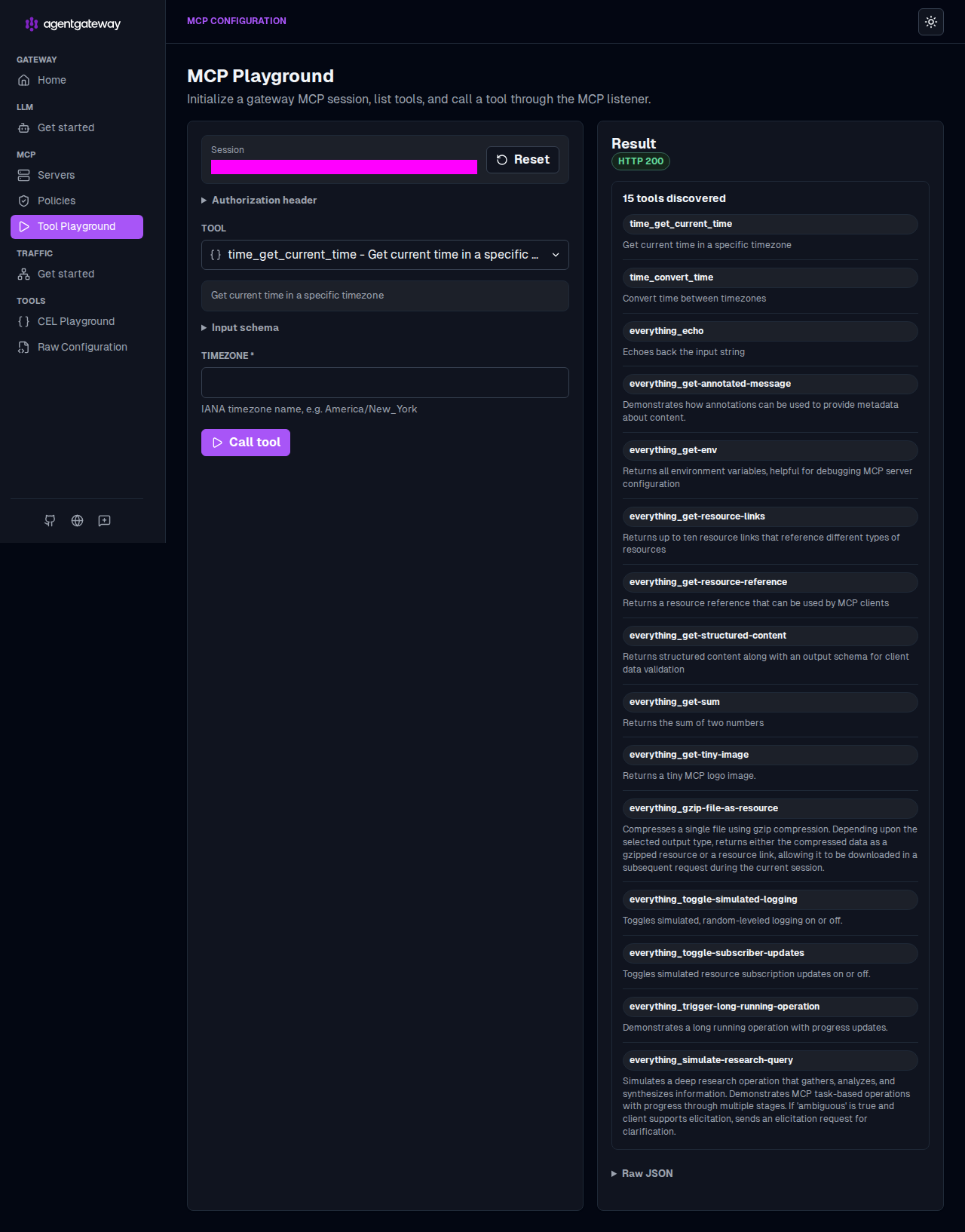
Click Initialize. The agentgateway UI opens an MCP session and lists the tools that are exposed across all targets in the backend.
Verify that the Result panel reports the discovered tools and that each tool name is prefixed with its target name, such as
everything_echoandtime_get_current_time. You now have a federated view of the tools from every target in the backend.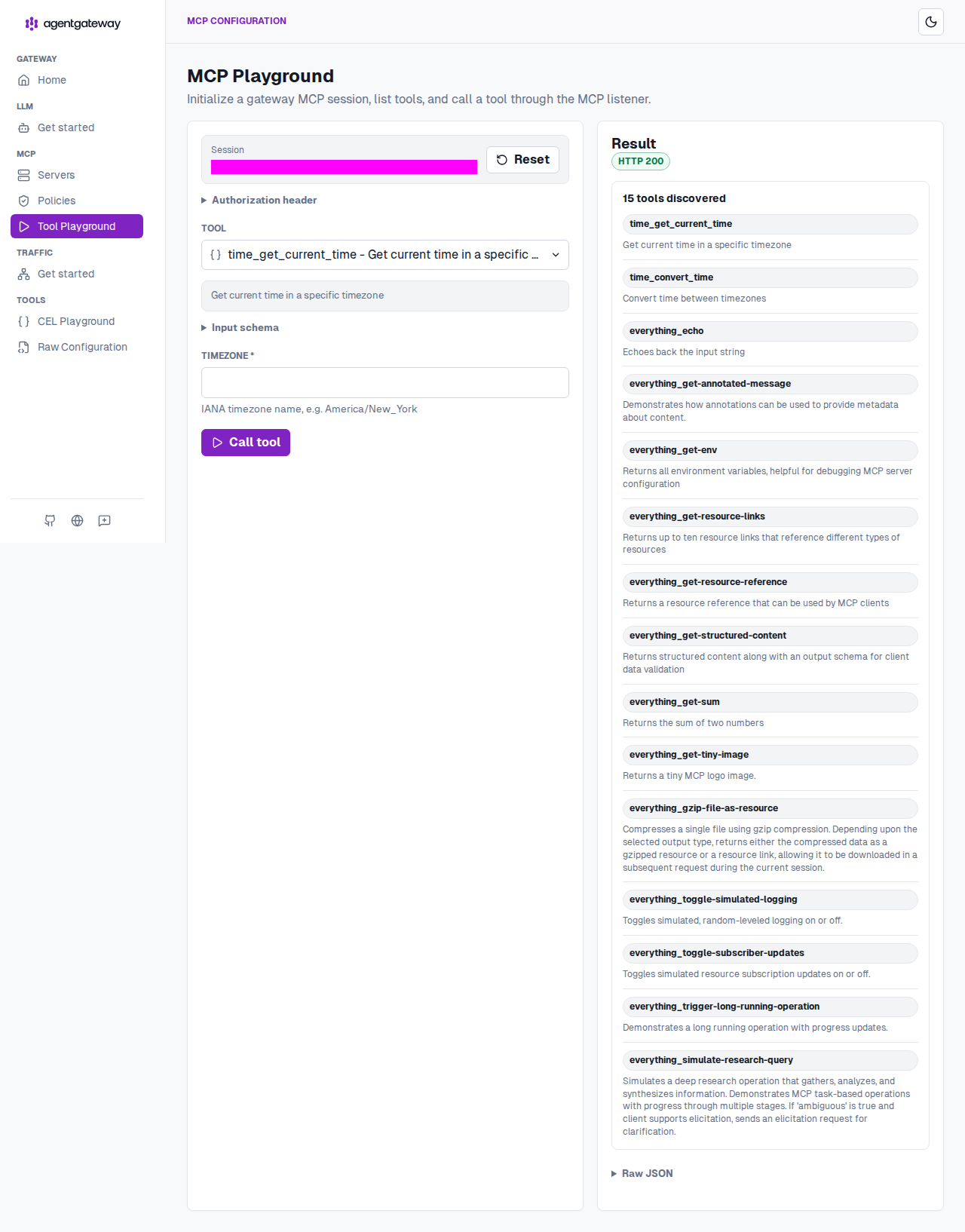
Verify access to a tool from the
everythingtarget.From the Tool dropdown, select the
everything_echotool.In the Message field, enter any string, such as
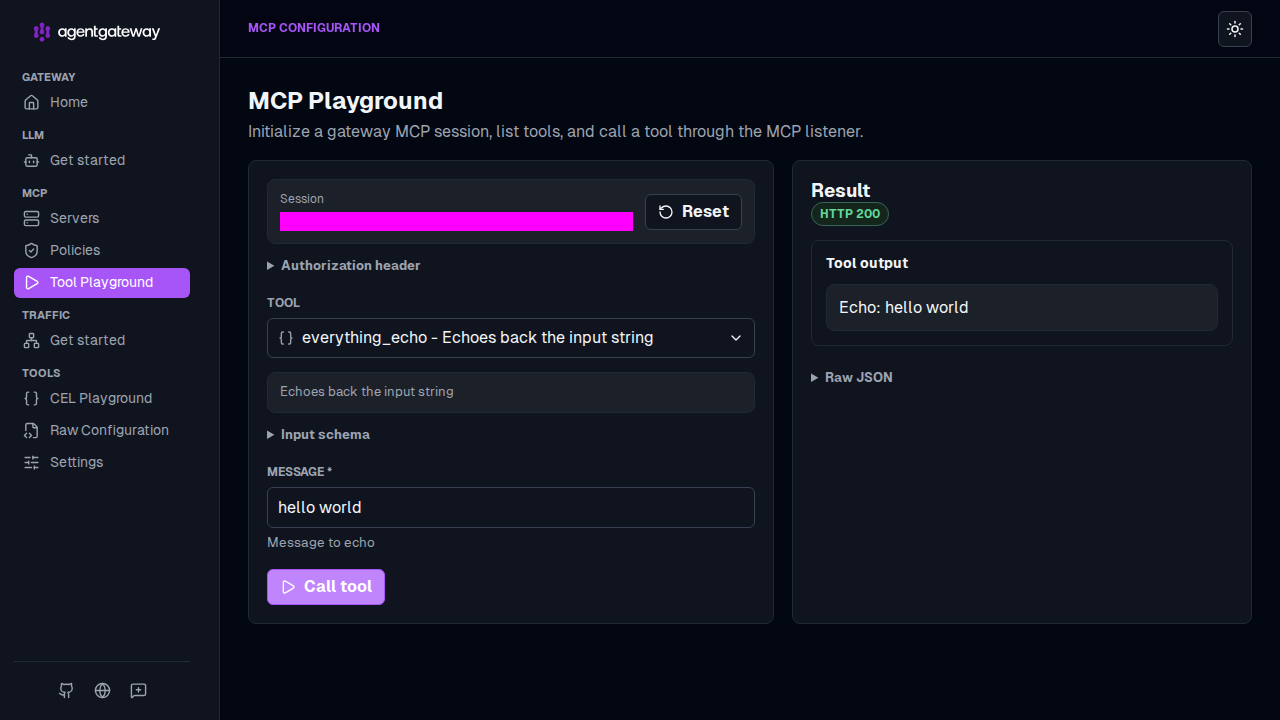
hello world, and click Call tool.Verify that the Result panel returns
HTTP 200and that your message is echoed in the Tool output.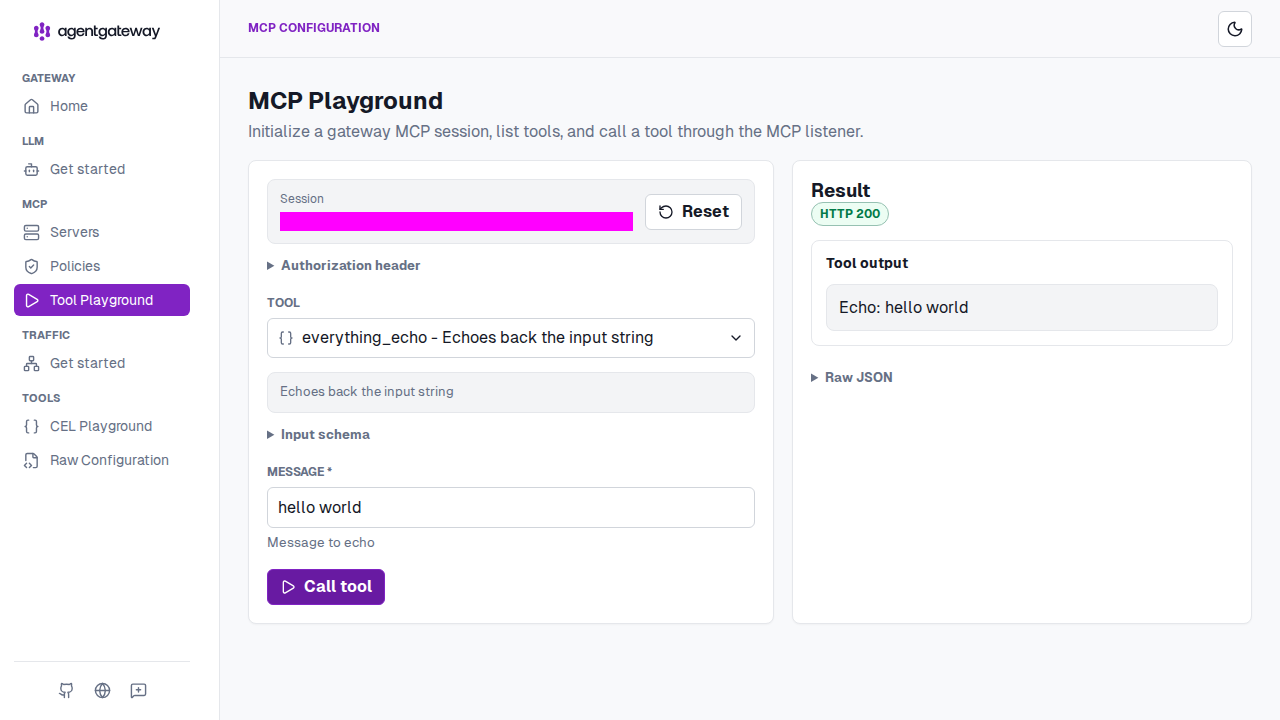
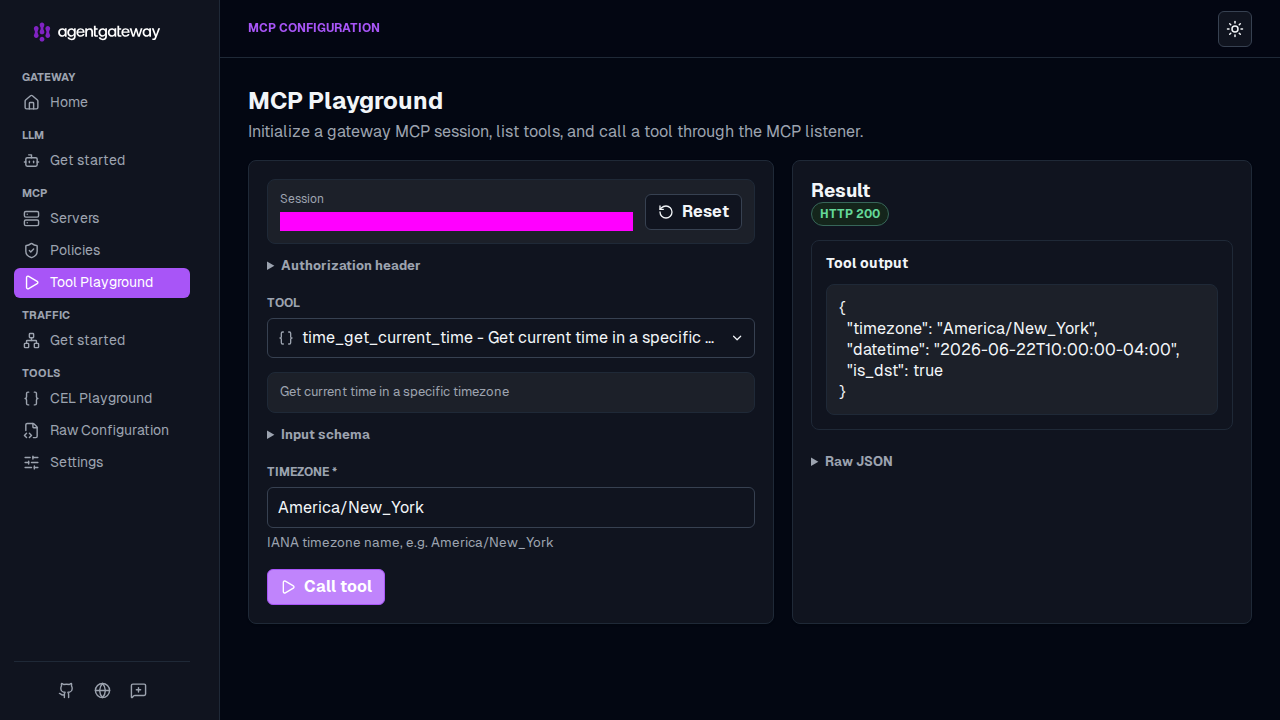
Verify access to a tool from the
timetarget.From the Tool dropdown, select the
time_get_current_timetool.In the timezone field, enter a timezone, such as
America/New_York, and click Call tool.Verify that the Result panel returns
HTTP 200with the current time in the Tool output.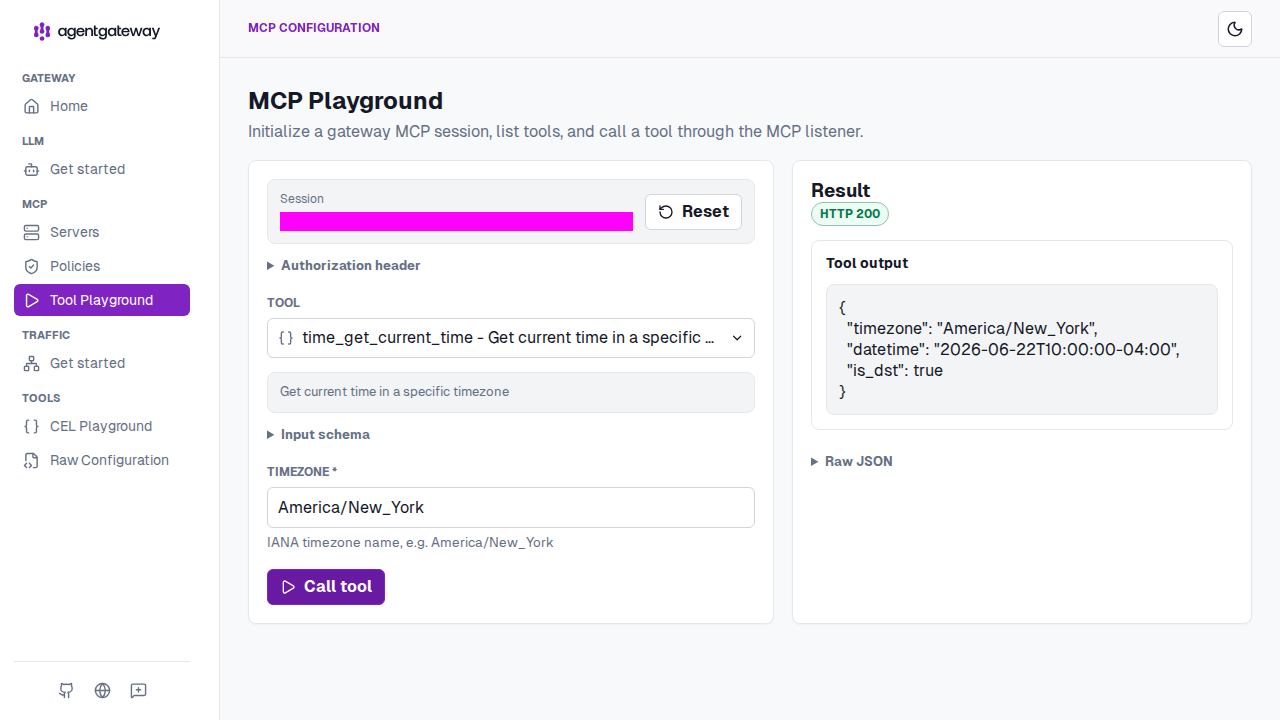
Tool name prefixing
When you multiplex multiple targets, agentgateway namespaces tool and prompt names with the target name so that identical names from different servers do not collide. Resource URIs retain target routing information and are unaffected. Control this behavior with the prefixMode field on the MCP configuration.
prefixMode | Behavior |
|---|---|
conditional (default) | Prefix tool and prompt names only when the backend has more than one target. |
always | Always prefix names, even when the backend has a single target. |
never | Never prefix names. Calls are routed by looking up which target serves the name, so names must be unique across all targets. |
Use never when clients need to call tools by their plain names, such as for MCP Apps that issue tool calls from a rendered UI. Because unprefixed names must be unique, agentgateway fails to start if two targets expose the same tool name in this mode.
# yaml-language-server: $schema=https://agentgateway.dev/schema/config
mcp:
  port: 3000
  prefixMode: never
  targets:
  - name: time
    stdio:
      cmd: uvx
      args: ["mcp-server-time"]
  - name: everything
    stdio:
      cmd: npx
      args: ["@modelcontextprotocol/server-everything"]
Next steps
- Apply different policies to different MCP targets with MCP target policies.